Installing AcroRIP and ZiggRoll on a Windows PC: Visual C++ First, Then the RIP, Then the Virtual Printer, Then the Roll Software
Published 8 November 2022
Every ZiggRoll licence comes with an install session, and this 2022 recording is the one we send ahead of it: eighteen minutes of a Windows PC going from nothing to a ripped job landing in ZiggRoll. There is no narration on the upload and the screen is small, so this post is the order of operations and the three things that break installs: the missing Visual C++ runtime, the RIP pointed at the wrong port, and antivirus quarantining the installer.
What the video shows
- 0:46 — Download folder: the installers
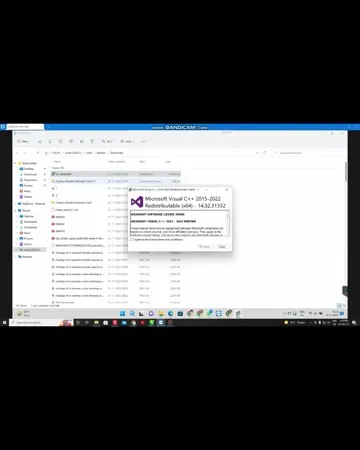
- 2:18 — Visual C++ redistributable first
- 3:51 — Extract the AcroRIP package
- 5:23 — Run the AcroRIP installer
- 6:56 — The driver installer window
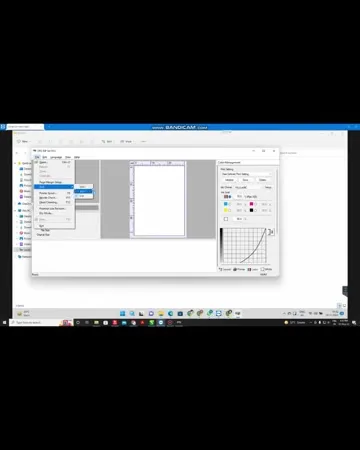
- 8:28 — AcroRIP opens: layout and printer panels
- 10:01 — Printer settings in AcroRIP
- 11:33 — ZiggRoll installer and virtual printer
- 13:06 — AcroRIP's printer set to the ZiggRoll port
- 14:38 — Colour panel check
- 16:11 — Printer panel: paper size check off
- 17:43 — First test job sent to ZiggRoll
Order of operations
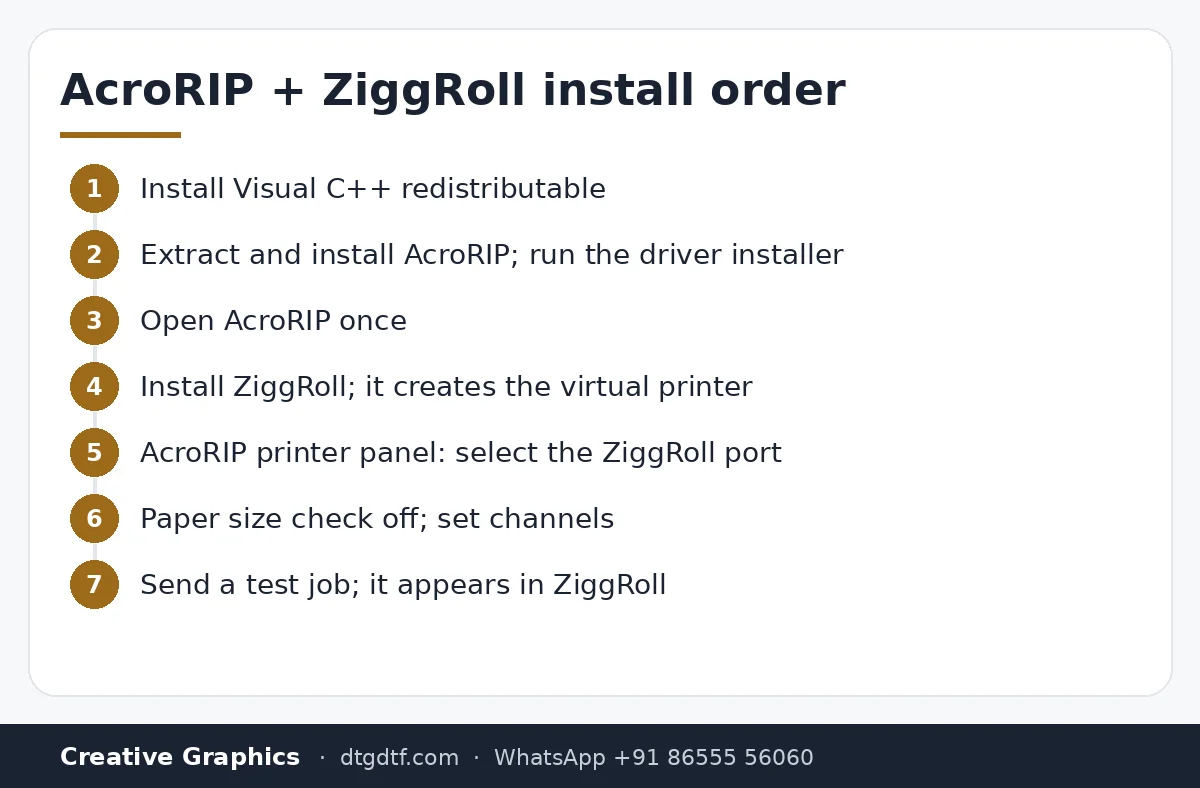
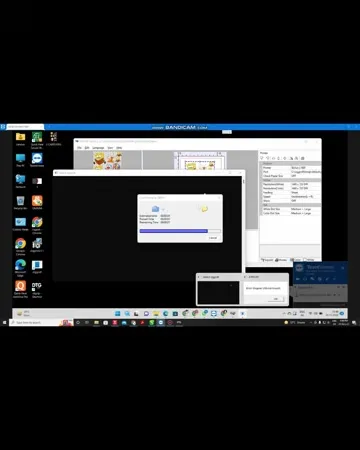
Visual C++ redistributable first; AcroRIP will not open without it and the error says nothing useful. Then extract the AcroRIP package and run its installer, then the driver installer it launches. Open AcroRIP once so it creates its printer entry. Then install ZiggRoll; it creates the virtual printer that AcroRIP will print to. Finally, in AcroRIP's printer panel, select the ZiggRoll port, and send a test job.
The three failure points
One: the runtime. If AcroRIP flashes and closes, install the Visual C++ redistributable and try again. Two: the port. AcroRIP must print to the ZiggRoll virtual printer, not the Epson directly, or jobs print as sheets and never reach the roll software. Three: antivirus. Unlicensed antivirus quarantines the RIP installer; remove it, Windows Defender is enough, as said in the must-have settings post.
Settings after install
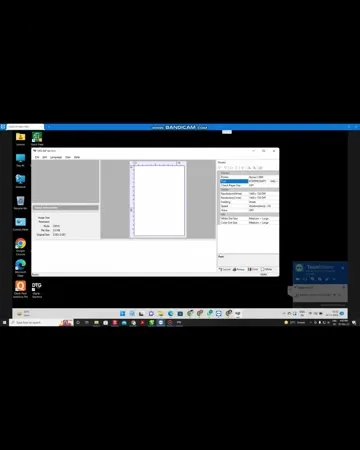
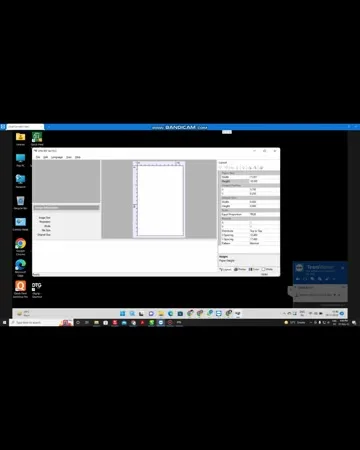
Paper size check off, resolution and dot size per the AcroRIP 11.2 settings post, and ink channels matched to your dampers. In ZiggRoll, select your printer model and run Load Roll before the first job. The first test job should appear in ZiggRoll's list within seconds of hitting print in AcroRIP.
Software
AcroRIP 11.2 with dongle and ZiggRoll V4, licence by email with the install video and a session on call. The 2024 walkthrough with the virtual printer step shown is here.
Frequently asked questions
In what order do I install AcroRIP and ZiggRoll?
Visual C++ redistributable, AcroRIP and its driver, open AcroRIP once, ZiggRoll with its virtual printer, then point AcroRIP's printer at the ZiggRoll port.
AcroRIP opens and closes immediately. Why?
The Visual C++ runtime is missing. Install it and reopen.
My jobs never appear in ZiggRoll.
AcroRIP is printing to the Epson directly. Select the ZiggRoll virtual printer port in AcroRIP's printer panel.
Antivirus blocked the installer.
Unlicensed antivirus quarantines RIP installers. Remove it; Windows Defender is enough.
Install not going through?
WhatsApp; installs are done on a remote session with every licence.
WhatsApp +91 86555 56060More videos: Roll printing software (ZiggRoll, SubliPhoto, Powerhouse)
- ZiggRoll V4 Now Runs DTF Rolls on the Epson L18050 and L8050: No Tape, No Paper Error
- Roll Printing on a Stock Epson L8050: No Modification, No RIP, Just ZiggRoll SubliPhoto
- The Clip That Started ZiggRoll: Roll Printing on a Stock Epson L1800 at a 2023 Exhibition
- Printing a DTF Roll on the L18050 with ZiggRoll V4 and AcroRIP 11.2: The Full Walkthrough
- ZiggRoll SubliPhoto in Studio Mode: Continuous Sublimation Rolls on Unmodified Epson Printers
- ZigRoll, Every Function Live and Uncut: Roll Printing on a Plain Epson L1800 with No Module