ZiggRoll V4, the 2024 Update, Explained for Our European Users: Virtual Printer, Load Roll, Reprint, and the PDF Manual
Published 12 October 2024
ZiggRoll sells more licences abroad than in India, and in 2024 a Slovak user asked for a walkthrough with subtitles in his language. This is it: the V4 update of 2024 on the L18050, with the on-screen captions in Slovak and the English headers for the rest of us. The steps are the ones every V4 user needs: pick the printer and make the virtual printer, feed the paper in the right mode, open ZiggRoll, load the roll, reprint a job. The PDF manual that comes with the licence covers the rest.
What the video shows
- 0:27 — Feed the paper in the right mode
- 1:22 — Select the correct printer and create the virtual printer
- 2:17 — The roll on the stand; the software interface
- 3:11 — Choose the printer in ZiggRoll
- 4:06 — The printer must be selected before loading
- 5:01 — The head and the loaded roll
- 5:56 — A good printer for this: the L18050
- 6:51 — Open ZiggRoll and the job list
- 7:46 — Try it: Load Roll on the printer
- 8:40 — Reprint a job without ripping again
- 9:35 — The DTF transfer coming off
- 10:30 — The PDF manual
Virtual printer first
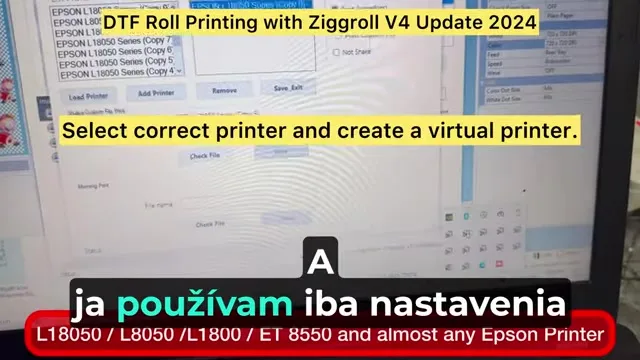
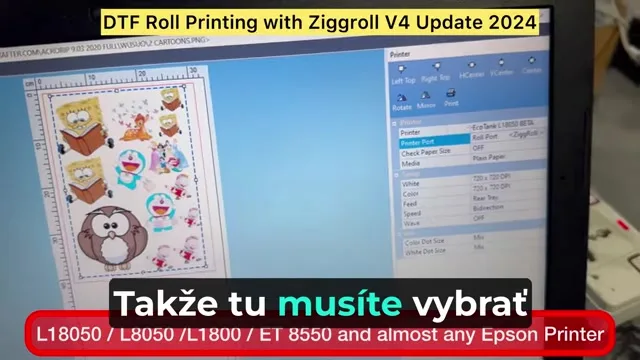
V4 works by installing a virtual printer that your RIP prints to. In the Epson driver list, select the correct model, L18050 here, and create the virtual printer from ZiggRoll's setup. The RIP sends the job to that virtual printer; ZiggRoll takes it from there. Get this wrong and nothing arrives in the job list.
Feed mode and the roll
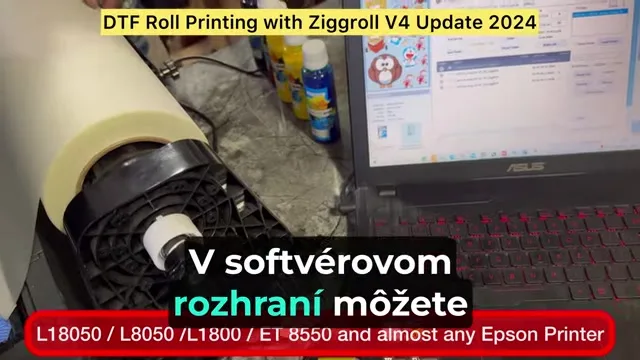
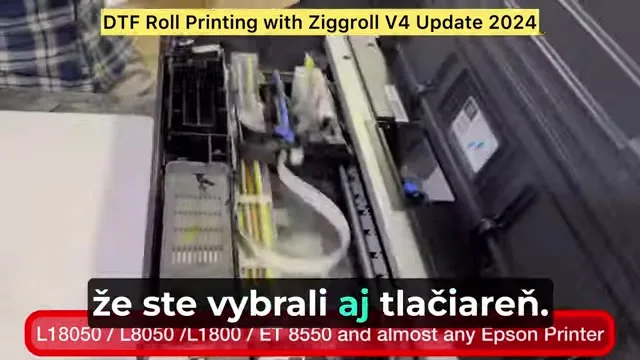
Paper has to be fed in the mode the software expects: rear feed, roll on the stand, leading edge straight. Then in ZiggRoll choose the printer, click Load Roll, and the printer takes the loader sheet and the roll in. The L18050 is a good printer for this once converted; the Slovak captions say so and I agree.
Reprint without ripping
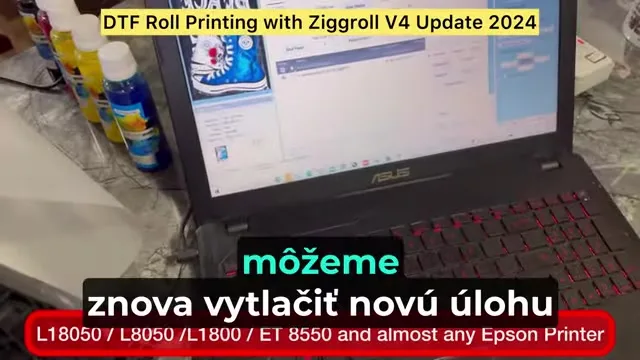
Jobs stay in ZiggRoll once ripped. Click a job, set copies, print again; the RIP is not involved. The 2024 update tightened the job list and the reprint flow, and added the printers on the caption: L18050, L8050, L1800, L805, L800 and ET-8550.
Manual and licence
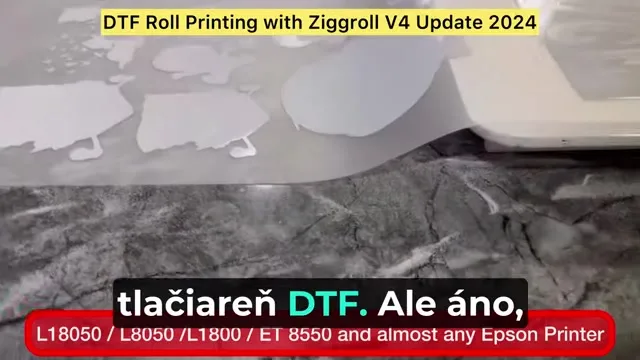
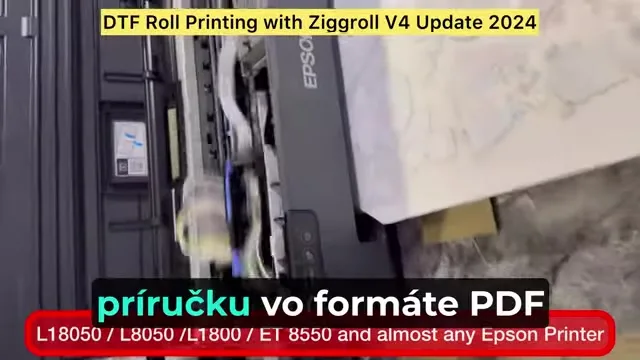
A PDF manual ships with every licence, in English. Buy at ZiggRoll V4, worldwide by PayPal or card, licence by email. The English long-form walkthroughs are V4 on the L18050 with AcroRIP and V4 on the L18050 and L8050. Sublimation and photo rolls in Europe use SubliPhoto.
Frequently asked questions
Which printers does ZiggRoll V4 support in the 2024 update?
Epson L18050, L8050, L1800, L805, L800 and ET-8550 / L8180, converted for DTF.
What is the virtual printer?
The printer your RIP sends the job to; ZiggRoll picks it up from there. Select the correct model when creating it.
Can I reprint without ripping again?
Yes. Jobs stay in ZiggRoll; click and print with any copy count.
Is there a manual?
A PDF manual in English ships with the licence; this video has Slovak subtitles for European users.
Outside India?
WhatsApp or email in English; licences ship worldwide by email the same day.
WhatsApp +91 86555 56060More videos: Roll printing software (ZiggRoll, SubliPhoto, Powerhouse)
- ZiggRoll V4 Now Runs DTF Rolls on the Epson L18050 and L8050: No Tape, No Paper Error
- Roll Printing on a Stock Epson L8050: No Modification, No RIP, Just ZiggRoll SubliPhoto
- The Clip That Started ZiggRoll: Roll Printing on a Stock Epson L1800 at a 2023 Exhibition
- Printing a DTF Roll on the L18050 with ZiggRoll V4 and AcroRIP 11.2: The Full Walkthrough
- ZiggRoll SubliPhoto in Studio Mode: Continuous Sublimation Rolls on Unmodified Epson Printers
- ZigRoll, Every Function Live and Uncut: Roll Printing on a Plain Epson L1800 with No Module