ZiggRoll SubliPhoto in Studio Mode: Continuous Sublimation Rolls on Unmodified Epson Printers
Published 28 August 2026
This is the long version of the SubliPhoto demo, 17 minutes, printing while I talk. The point I keep returning to: none of these printers are modified. Not the L18050, not the L8050, not the ET-8550. If you print sublimation, photo or label rolls on an Epson desktop, this is probably the only software on the market built for it, with colour control on top. I am not a YouTube video maker, as I say halfway through, so the bench is messy, but every click is real. Here is the walkthrough in order.
What the video shows
- 0:00 — Tested printers: L18050, L8050, ET-8550 / L8180, L130
- 0:31 — Buy from the official site: updates, patches, upgrades
- 0:46 — DTF? Buy ZiggRoll V4. Sublimation, photo, eco-solvent vinyl? Buy SubliPhoto
- 1:13 — PayPal or card; licence key and a personal download link by email
- 1:56 — The dashboard: Studio mode is the one I recommend
- 2:21 — Set up: add a virtual printer once
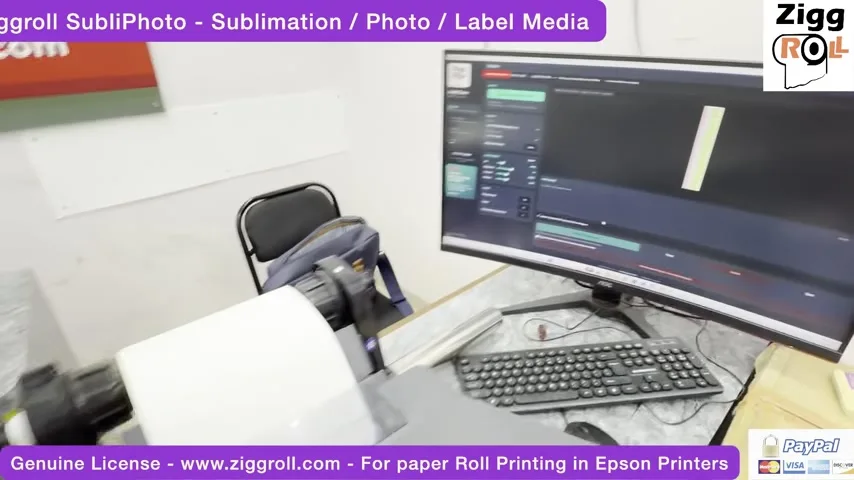
- 3:15 — Cut the roll straight; Print on Hold
- 3:44 — Add a test chart; print from CorelDRAW by saving a JPG
- 4:20 — First print at 4-pass
- 5:00 — Switch to 2-pass, ink limit 41, fast mode
- 5:42 — Three copies with a 1 mm gap; head space between jobs
- 6:24 — No modification on any printer, not even the ET-8550; Mac version coming
- 6:55 — A 50-inch lanyard file from CorelDRAW; density up 43%
- 8:13 — Legacy mode: printing from any software through the ZiggRoll printer
- 9:15 — Licences are online; subscription recommended
- 9:46 — One licence, one PC; disconnect before moving
- 10:40 — Request a printer and I will try to add it
Which ZiggRoll do you need?
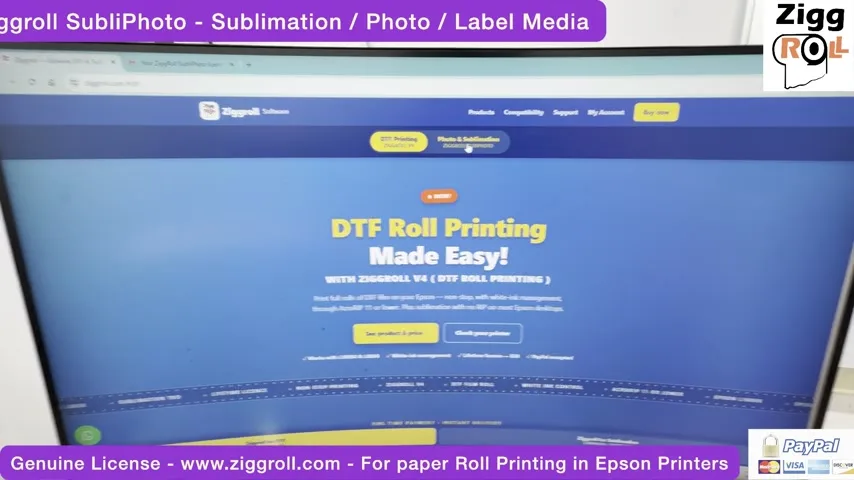
I say this on screen because people get it wrong: if your job is DTF, buy ZiggRoll V4. If your job is sublimation, photo paper or eco-solvent vinyl, buy SubliPhoto. On the site you will see the plans: subscription, lifetime, a 5-PC licence. Prices change, so check the website, not an old video.
Buy it from the official site, for a reason
Each licence is tied to a fresh software download sent to your email with the key. That is how you get updates and patches. Pirated or third-party copies do not get them, and I ask people not to buy those.
Studio mode and the one-time setup
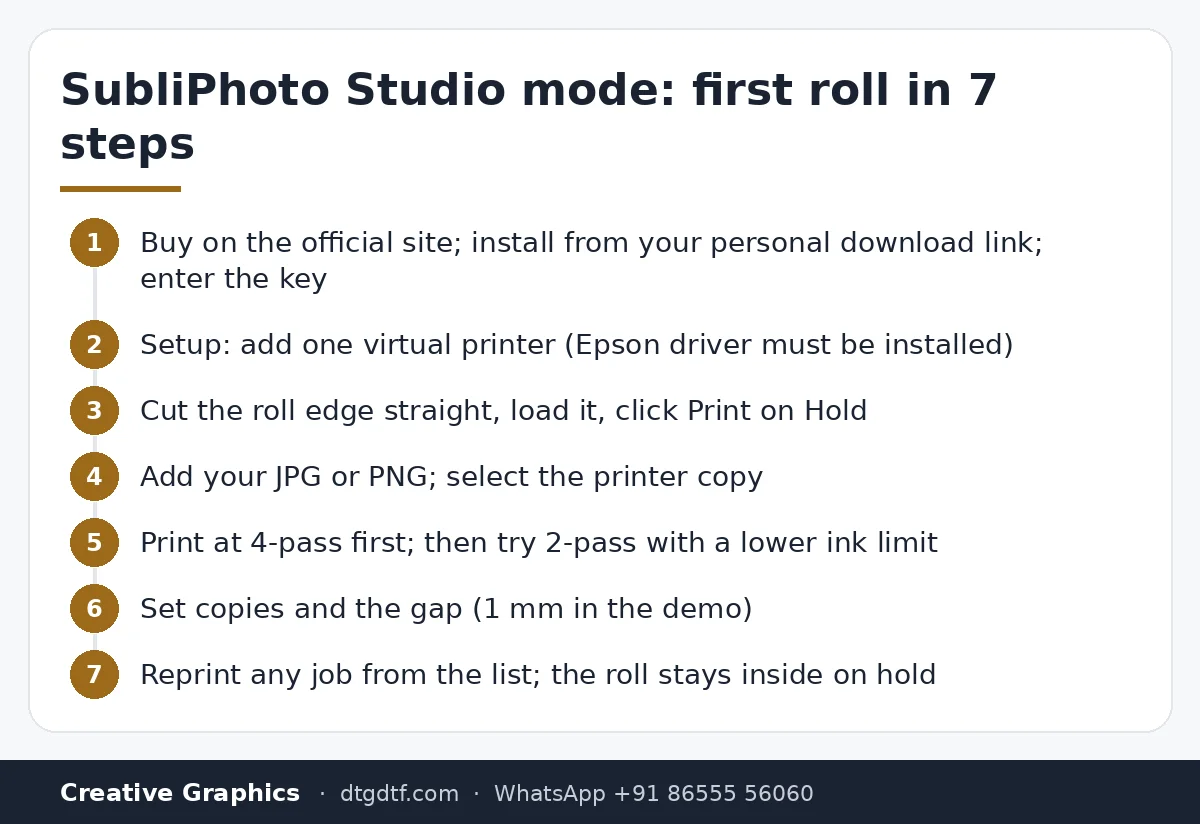
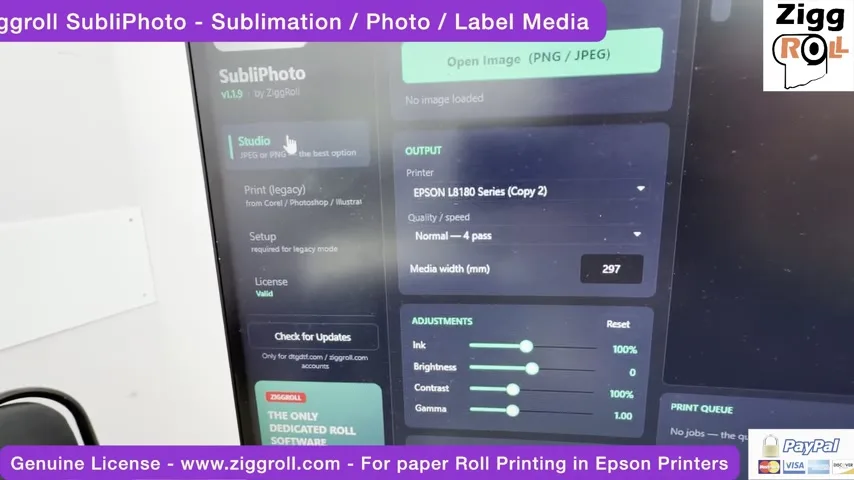
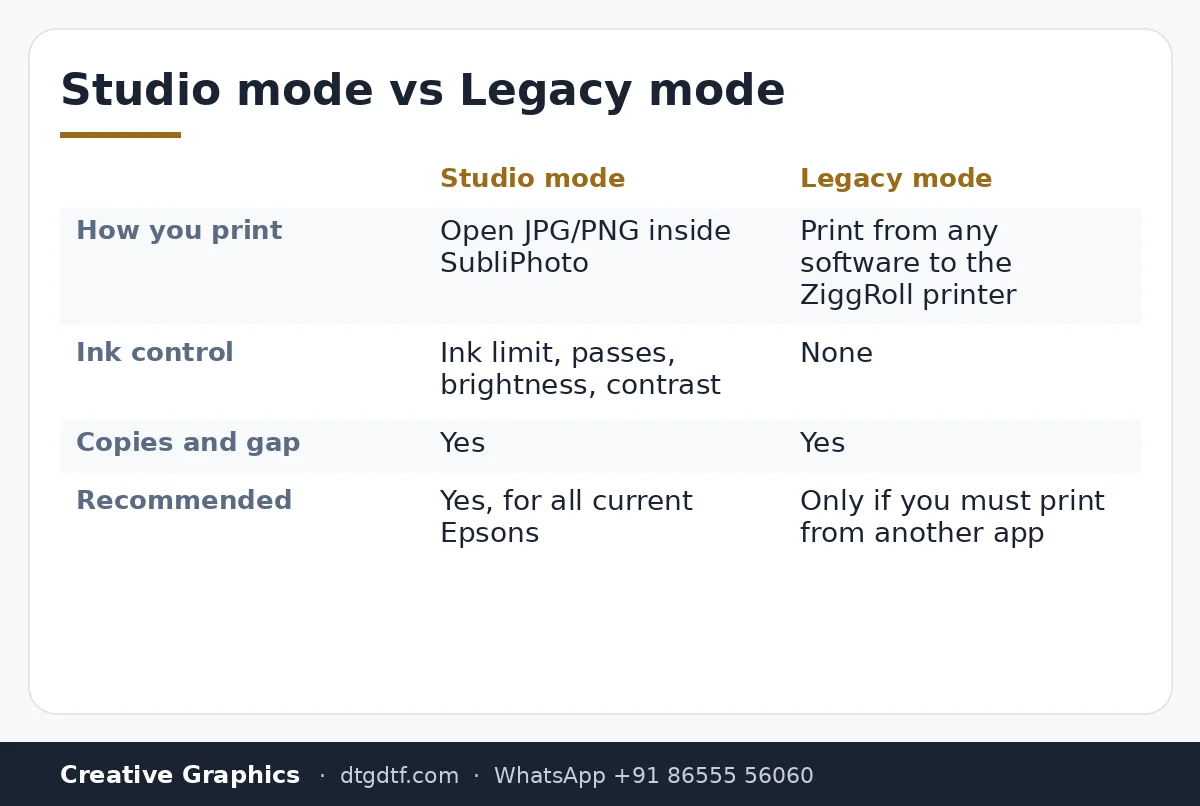
After the key goes in you land on the dashboard. Studio mode is what I recommend for the current Epson models: ink control, ink limits, pass count, brightness and contrast. Setup is one step: go to Setup and add a virtual printer. You need the Epson driver for your printer installed already. I named mine ZiggRoll; name yours anything. You will only use that virtual printer if you print from another program.
Printing the test chart
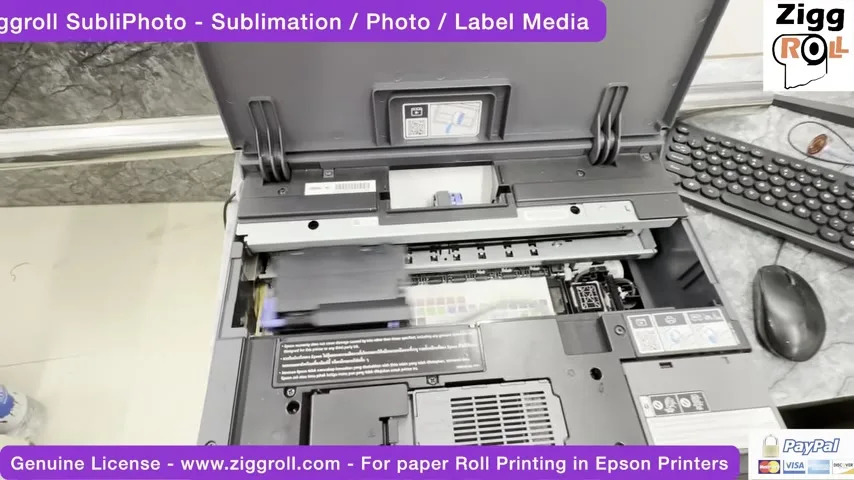
Cut the roll edge straight, load it, and click Print on Hold. Add an image: I used a four-piece test chart. If you design in CorelDRAW, export a JPG and open that; no need to print from CorelDRAW itself. Select the printer (copy 1 on my PC), print, and the paper goes in. One honest hiccup on camera: my roll was 7 inches wide and the chart was designed at 8.5, which is why the edge clips. Not the software's fault.
4-pass to 2-pass, ink limit 41
The first chart printed at 4-pass. For the second I dropped to 2-pass, faster, and set the ink limit to 41, which I already knew works on my printer with the sublimation inks loaded (these are not Epson inks). When a job ends the paper stays inside on hold. Then three copies with a 1 mm gap: the first gap is the head space, every copy after that is the gap you set. In fast mode the speed visibly goes up.
A 50-inch file
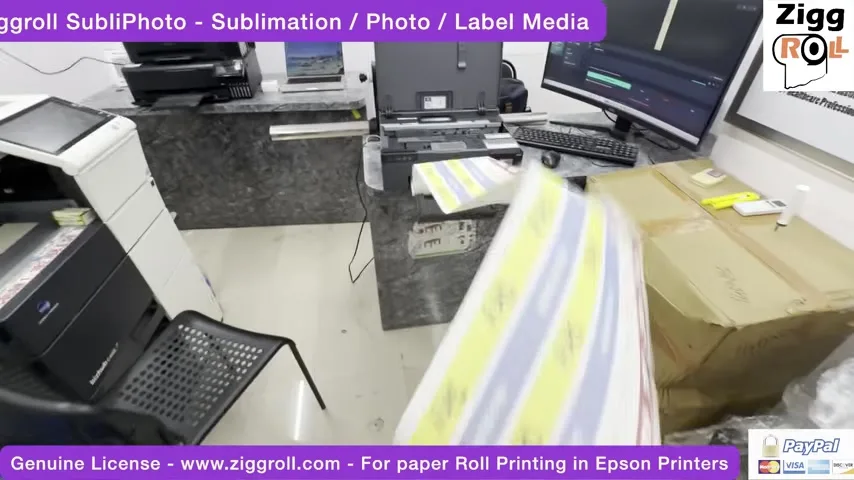
The second file is a lanyard design I made in CorelDRAW at 50 inches long and exported as JPG. I raised the density by 43 percent because I could see the print had room for more, and set three copies. That is three 50-inch lanyard strips with no stop and no feeding.
Legacy mode, if you must print from elsewhere
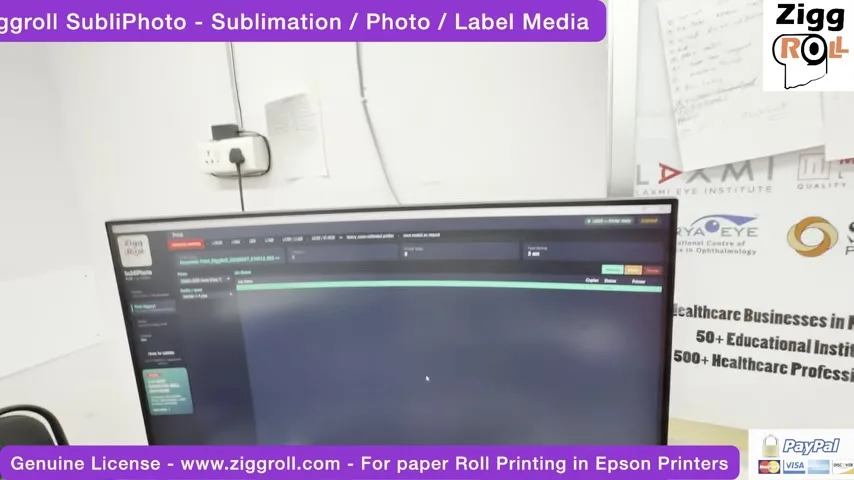
Legacy mode lets any software print to the ZiggRoll virtual printer, which then shows up in the job list. I do not think many people need it, and you lose the ink controls, so use Studio mode.
Licence rules
- Licences are online-connected, so you need a valid licence or subscription. I recommend the subscription because we keep adding features.
- One licence, one PC. To move it, disconnect the licence on the old PC first.
- Your licences are listed in your account on dtgdtf.com or ziggroll.com.
- A Mac version is coming, and existing buyers get it.
- Want a printer added? Ask. If I can add it, it arrives in an update.
India pricing: SubliPhoto lifetime at ₹4,000 + GST, yearly subscription at ₹3,000 + GST. Sublimation inks for these printers: Jap-X sublimation inks.
Frequently asked questions
Which printers has SubliPhoto been tested on?
Epson L18050, L8050, ET-8550 / L8180 and L130 at the time of the video. Everything listed on the website is tested.
Do I need to modify the printer?
No. None of the printers in the demo are modified, not even the ET-8550.
Studio mode or Legacy mode?
Studio mode. It has ink limits, pass control, brightness and contrast. Legacy mode only accepts jobs from other software.
What pass and ink settings should I use?
In the demo: 4-pass for the first chart, then 2-pass fast with ink limit 41 on my printer. Test on yours; every ink and paper is different.
Can I use one licence on two PCs?
No. Disconnect the licence on the first PC, then activate on the second.
Is there a Mac version?
It was announced in the video as coming; existing buyers get access when it ships.
Related guides
Have a printer not on the list?
Tell me the model on WhatsApp. If it can be added, it comes in the next update.
WhatsApp +91 86555 56060More videos: Roll printing software (ZiggRoll, SubliPhoto, Powerhouse)
- ZiggRoll V4 Now Runs DTF Rolls on the Epson L18050 and L8050: No Tape, No Paper Error
- Roll Printing on a Stock Epson L8050: No Modification, No RIP, Just ZiggRoll SubliPhoto
- The Clip That Started ZiggRoll: Roll Printing on a Stock Epson L1800 at a 2023 Exhibition
- Printing a DTF Roll on the L18050 with ZiggRoll V4 and AcroRIP 11.2: The Full Walkthrough
- ZigRoll, Every Function Live and Uncut: Roll Printing on a Plain Epson L1800 with No Module
- Stop the Sheet-Feeding Madness: Why Roll Printing on Your Epson Beats Feeding Sheets One by One