Roll Printing on a Stock Epson L8050: No Modification, No RIP, Just ZiggRoll SubliPhoto
Published 25 August 2026
People kept asking me whether the new L8050 and L18050 could print rolls without being opened up. This three-minute clip is my answer: a 50-inch sublimation roll printed on a bone-stock L8050 with nothing changed inside it, no RIP, just our SubliPhoto software driving the printer from a JPG. Two and a half lakh people have watched it since. Here is what I did on screen and the settings I used.
What the video shows
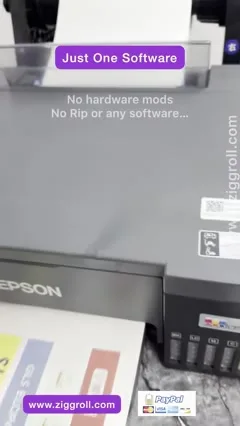
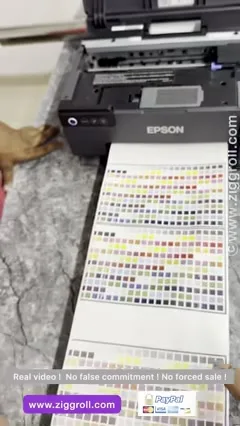
- 0:00 — Stock Epson L8050, no modification, no RIP: print from JPG or PNG
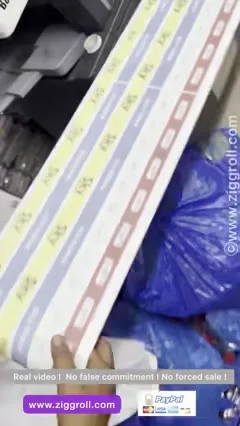
- 0:13 — A 50-inch print already on the roll
- 0:25 — The software: ZiggRoll SubliPhoto, now officially launched
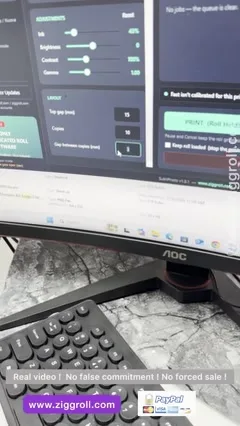
- 0:44 — Open an image, pick 2-pass for the demo, 1 mm gap between prints
- 1:04 — Eight copies, then ten, printing one after another
- 1:31 — Fast, super fast or normal: normal is the best setting
- 1:52 — Second run at 44 to 47% ink: compare the density
- 2:21 — Head space between files and between duplicate copies
- 2:41 — Fewer lines: set it in the software, or use better paper and ink
Why I did not touch the printer
Every other roll video on my channel involves taking the printer apart. This one does not. The L8050 in the clip is exactly as it came out of the box. The paper was already loaded as a roll, and the only thing between the JPG and the print is SubliPhoto. If you have been told that roll printing on these Epsons needs a RIP and a modified feed, this video is the counter-evidence, printed live.
What you see on the roll
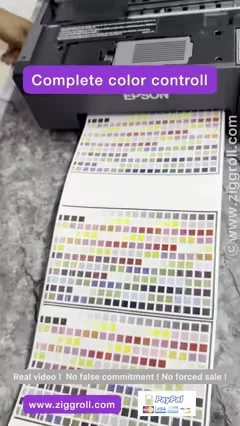
The first 50 inches had already printed before I started recording, so the roll was inside and running. Then I open a second file, a colour chart, which is what I use when I want to compare settings honestly: it shows banding and density differences better than a photo does.
The settings I used, and why
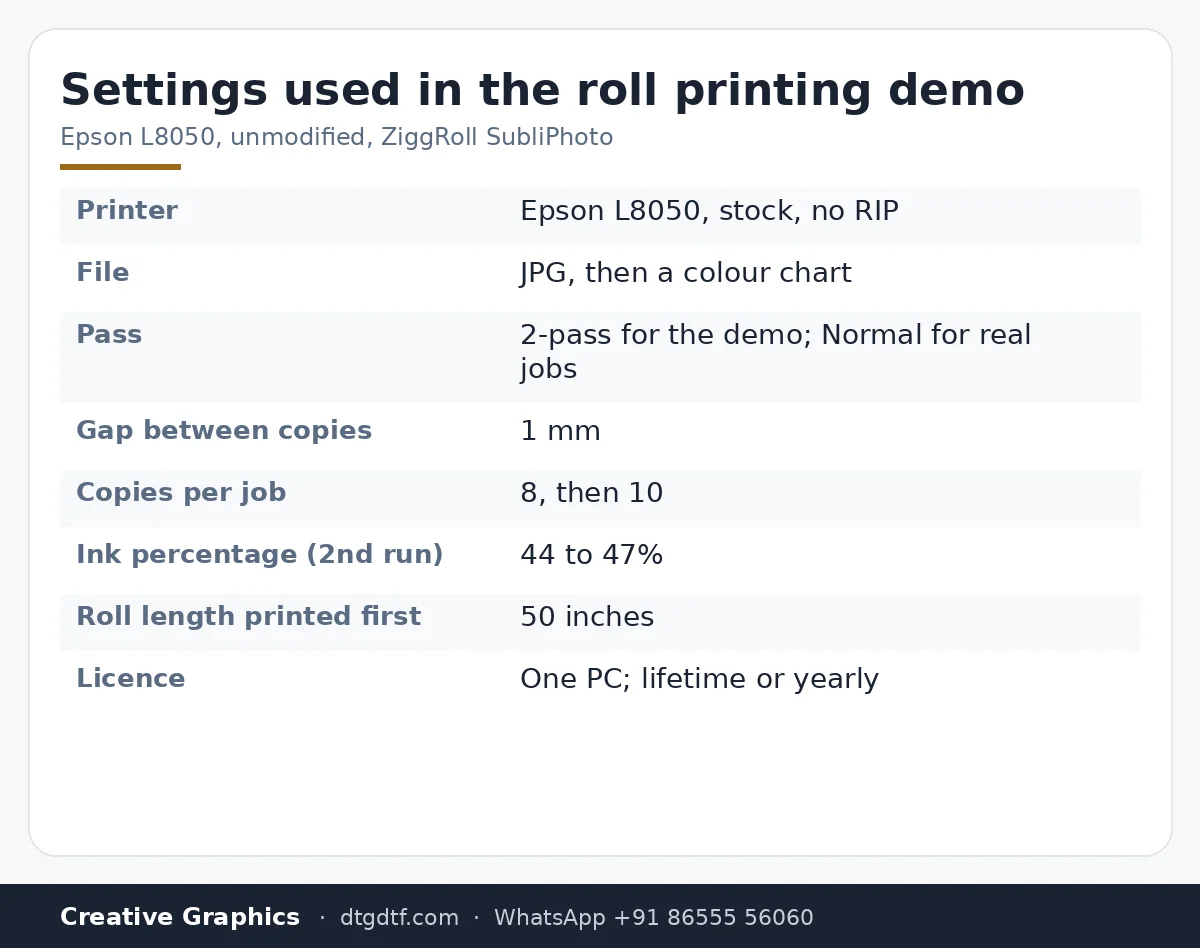
- Pass: 2-pass, only because I wanted a quick video. Normal is the right setting for real jobs; the software also has fast and super fast.
- Gap between copies: 1 mm. You set it once and every copy on the roll keeps that spacing.
- Copies: I set eight, then ten. The printer pauses between jobs and the roll stays inside, so the next file starts exactly where the last one ended.
- Ink percentage: second run at 44 to 47 percent so you can see the density change against the first run.
Lines, and how to reduce them
On the second run you can see the lines have reduced. There are two ways to get there: set it in the software, or use better paper and proper sublimation inks. My pickup rollers on this printer had already picked up a lot of ink by the time I filmed, which is the honest state of a machine that prints rolls all day. If you want cleaner results than the demo, use Jap-X sublimation inks and decent paper; the software cannot fix cheap paper.
Head space and duplicate copies
Two things people ask after watching: how the software handles the gap when you send a new file, and whether you can duplicate one file many times. Both are settings. Each new file starts after the head space you set; duplicates follow the gap you set for copies. Nothing is measured by hand.
Where to get it
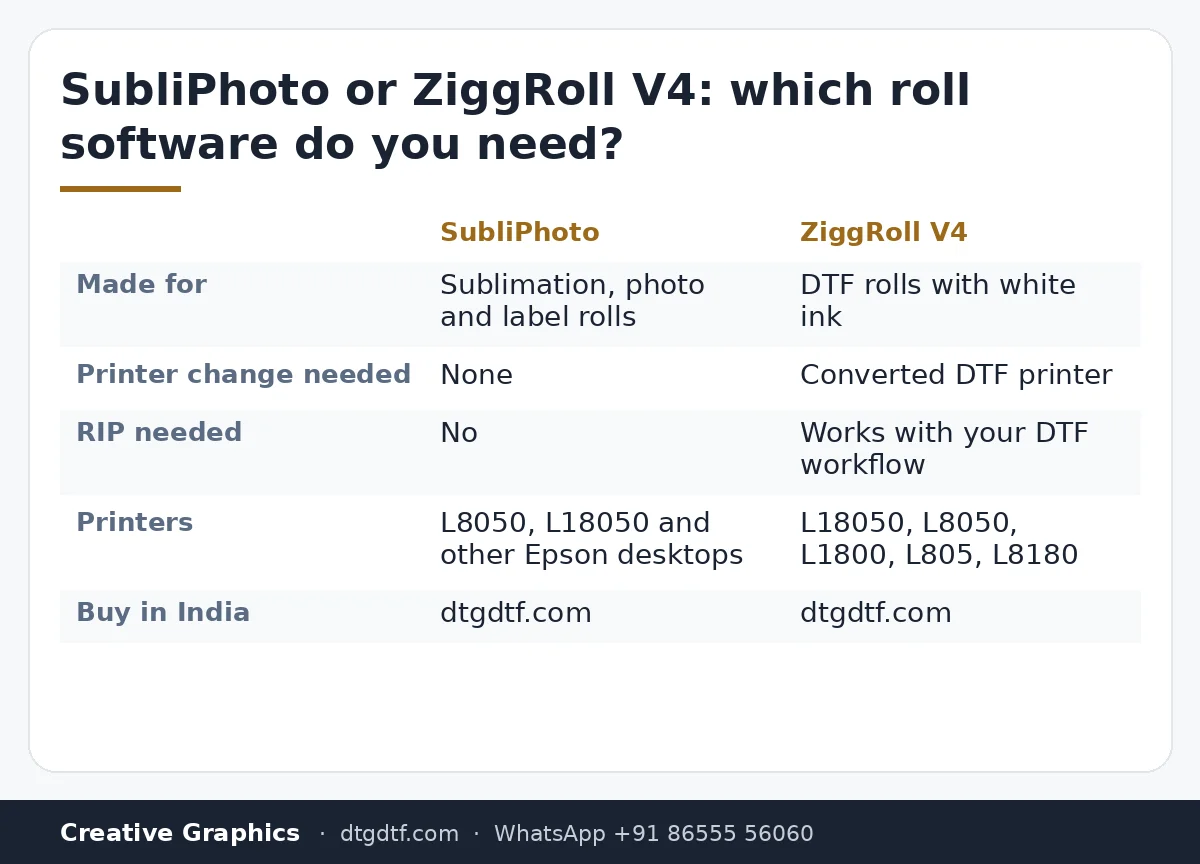
SubliPhoto is the licensed roll-printing software from ZiggRoll. It runs the L8050, L18050 and other Epson desktop models for sublimation, photo and label rolls. In India buy it here: SubliPhoto lifetime licence (₹4,000 + GST) or the yearly subscription (₹3,000 + GST). Outside India the licence is sold on ziggroll.com. If your work is DTF rather than sublimation, the roll tool for that is ZiggRoll V4. Software is delivered by email after payment; the licence is tied to one PC.
Frequently asked questions
Does SubliPhoto need any change to the printer?
No. The L8050 in the video is unmodified. The roll is loaded, the software drives the printer directly from a JPG or PNG.
Does it need a RIP?
No. That is the point of the video: no RIP, no driver tricks, just the software.
Which pass setting should I use?
Normal. I used 2-pass in the video only to keep it short. Fast and super fast exist for proofs.
Which printers does it support?
Epson L8050 and L18050 are shown; the software also runs other Epson desktop models for sublimation, photo and label rolls.
Can it print DTF rolls?
SubliPhoto is for sublimation, photo and label rolls. For DTF rolls use ZiggRoll V4.
Is the licence lifetime?
Two options in India: a lifetime licence for the current version, or a yearly subscription that includes every new version. One PC per licence.
Related guides
- Switching from Sublimation to DTF — What to Budget For
- DTF Printer Buying Guide — What to Look For (and Avoid) in India
Want to see your own file printed on a roll?
Send the JPG on WhatsApp and I will run it through SubliPhoto on the L8050 and send you the video.
WhatsApp +91 86555 56060More videos: Roll printing software (ZiggRoll, SubliPhoto, Powerhouse)
- ZiggRoll V4 Now Runs DTF Rolls on the Epson L18050 and L8050: No Tape, No Paper Error
- The Clip That Started ZiggRoll: Roll Printing on a Stock Epson L1800 at a 2023 Exhibition
- Printing a DTF Roll on the L18050 with ZiggRoll V4 and AcroRIP 11.2: The Full Walkthrough
- ZiggRoll SubliPhoto in Studio Mode: Continuous Sublimation Rolls on Unmodified Epson Printers
- ZigRoll, Every Function Live and Uncut: Roll Printing on a Plain Epson L1800 with No Module
- Stop the Sheet-Feeding Madness: Why Roll Printing on Your Epson Beats Feeding Sheets One by One