Ink Charge Once a Week Instead of Power Flush: The Epson Adjustment Tool for DTF Printers, Head Cleaning, Waste Pad Reset and Error Codes
Published 20 May 2023
Power flush is what everyone does when a head looks blocked, and it is what tears the head. Ink charge does the same job gently, and on an L1800 you should do it about once a week. This video was recorded live on a customer's PC in May 2023: download the adjustment tool, run a head ink charge, see the ink arrive at the waste pipe, and while you are there, reset the waste pad counter and learn where the error code hides. Eight minutes.
What the video shows
- 0:01 — Ink charge weekly; never power flush
- 0:33 — Download the free tool from the site; printer must be idle with no pending jobs
- 1:08 — About Us, Downloads: resetter and adjustment tools; password 1234
- 2:16 — Select L1800, printer port, OK; particular adjustment mode
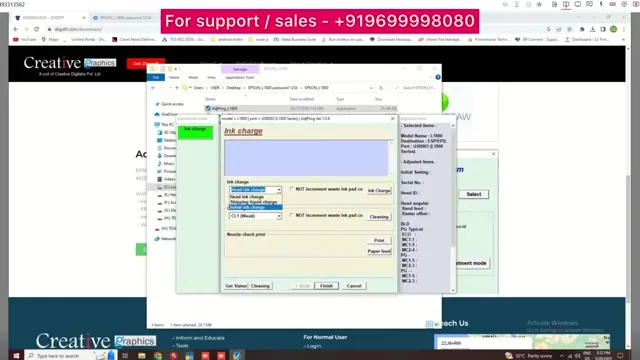
- 2:46 — Ink charge: head charge (5 min), shipping liquid (8 to 9 min), initial (20 min)
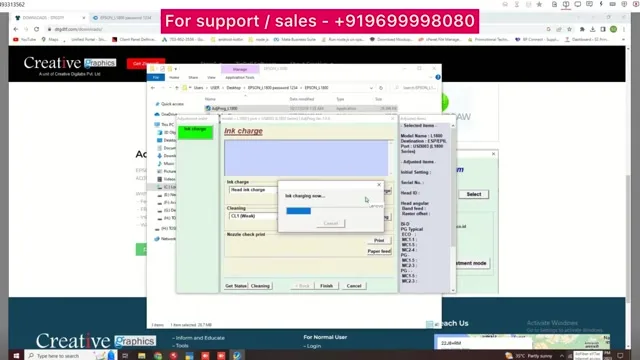
- 3:14 — Do not increment the waste pad counter; click Ink charge
- 4:19 — Ink must come out at the waste pipe, or the cleaning station is at fault
- 4:45 — Weekly or fortnightly, as required; density improves
- 5:13 — Four head-cleaning modes; never power ink cleaning or flush
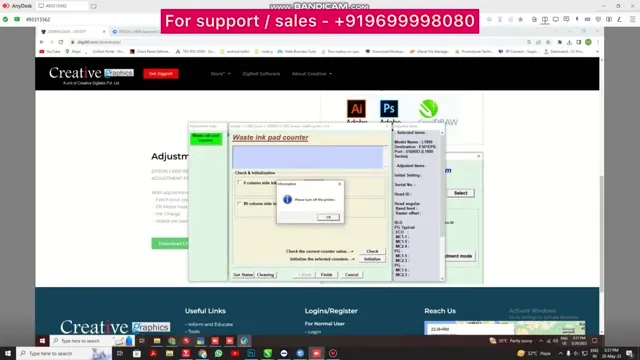
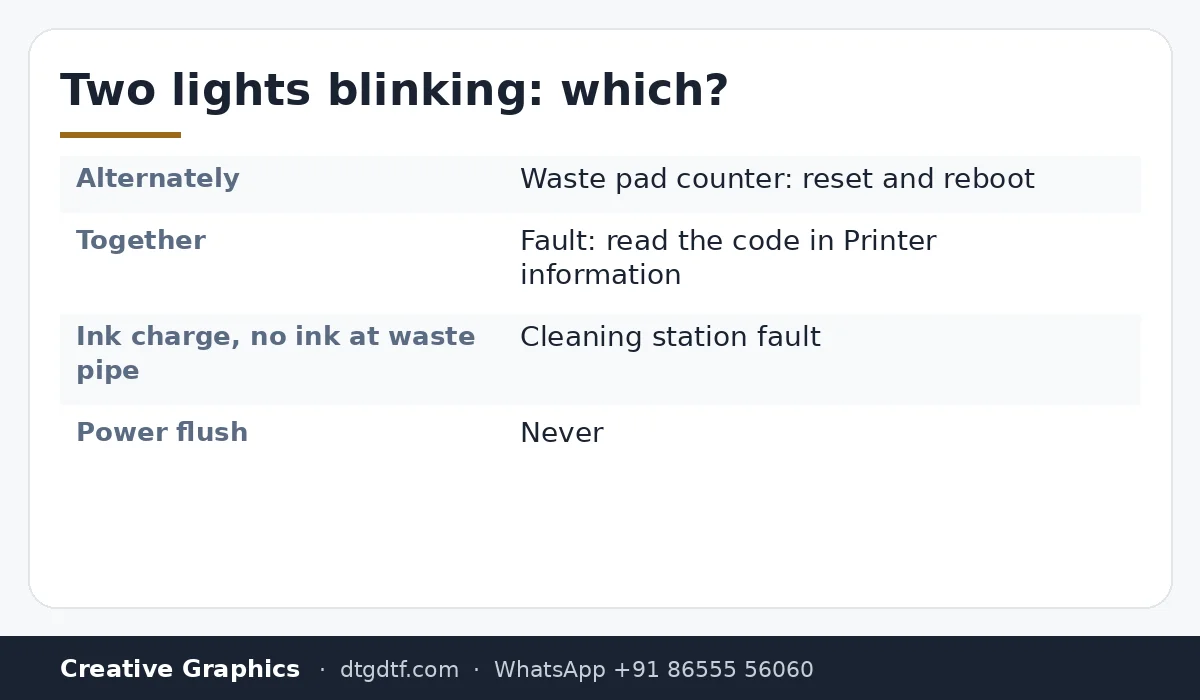
- 5:51 — Two lights blinking alternately: reset the waste pad counter
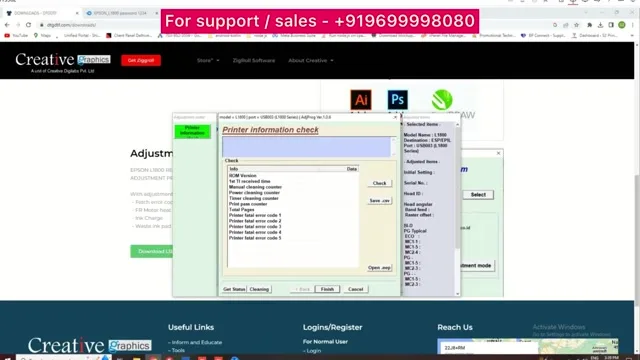
- 6:24 — Two lights blinking together: Printer information, read the code
- 7:35 — Latest tool version always on the site
Why ink charge, not power flush
A power flush pushes ink through under high pressure from the Epson driver and stresses the head. An ink charge from the adjustment tool moves fresh ink through the dampers and head gently, opens the nozzles, and you see the density improve. Once a week on a printer in daily use; once in two weeks if it runs less. Only when required, not as a habit.
Get the tool
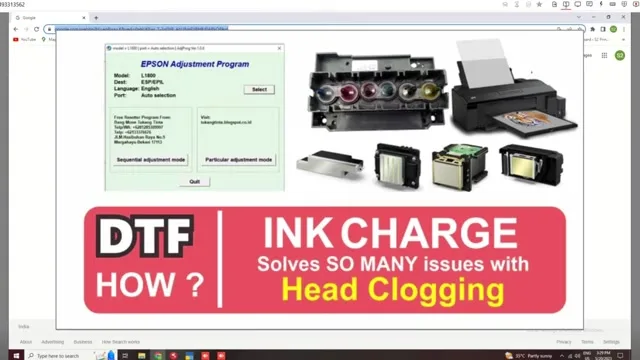
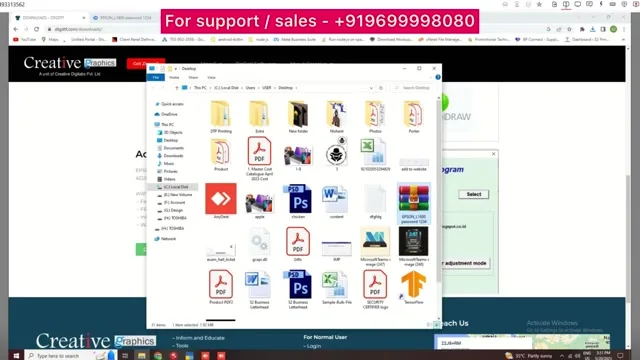
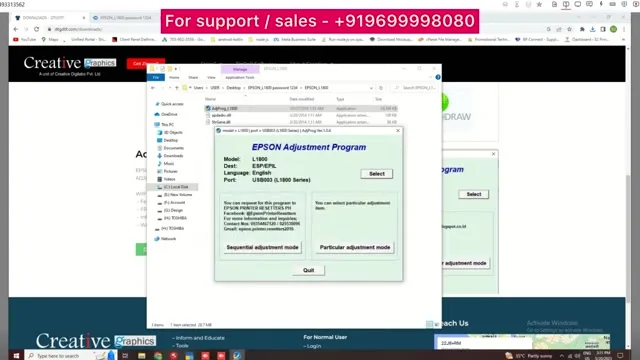
It is free on our site, under About Us and then Downloads, with the resetter and the other tools. The archive is password-protected with 1234 because some PCs flag it as malware; it is not. Extract, open the L1800 adjustment tool, pick the model and the port the printer is on, OK. Make sure the printer is ready with nothing in the queue and no error showing before you start.
Run the ink charge
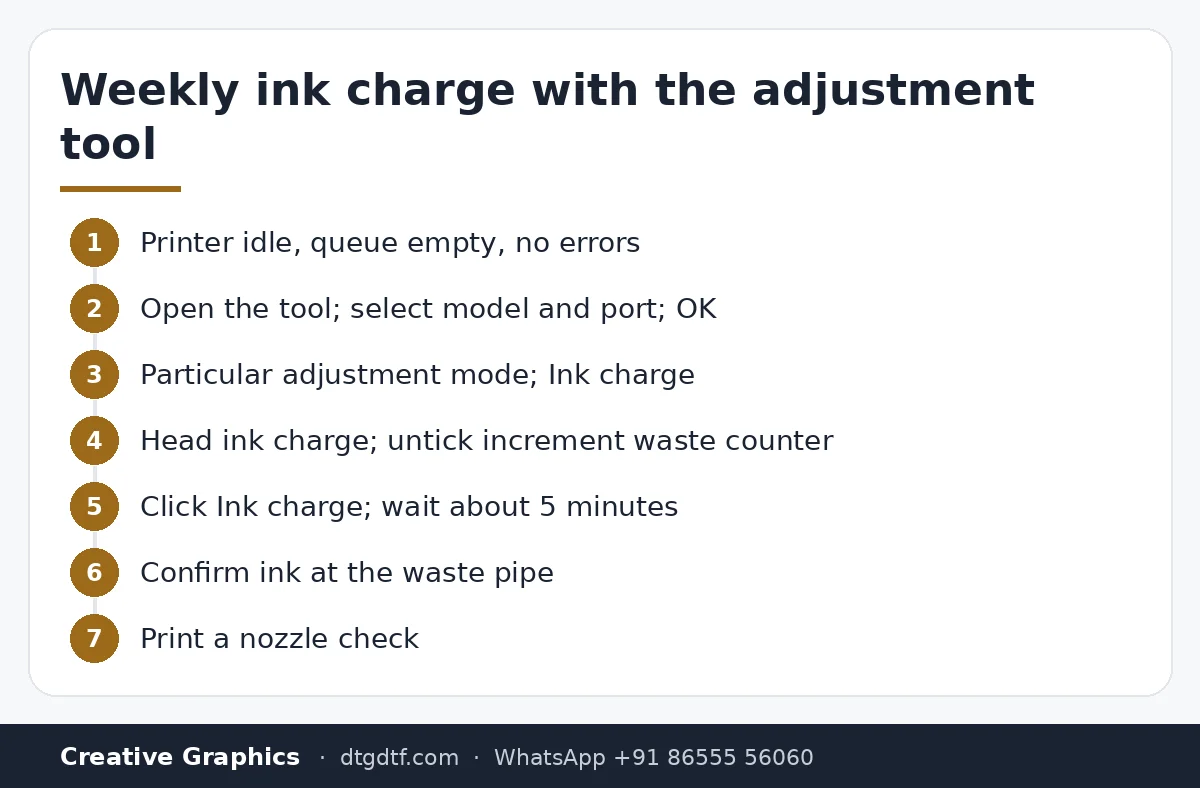
Particular adjustment mode, Ink charge. Three options: initial ink charge for a brand-new printer whose dampers are empty, about twenty minutes; shipping liquid charge, eight to nine minutes; head ink charge, the one for regular use, about five. Untick 'increment waste ink pad counter', click Ink charge, wait. Ink must come out at the waste pipe. If it does not, the cleaning station is the problem, not the head.
Cleaning modes, waste pad, error codes
The same menu offers four head-cleaning modes; use them instead of the Epson driver's power cleaning, which I avoid entirely. If the two lights blink one after the other, the status monitor asks for pad replacement: open Waste ink pad counter, initialise, reboot the printer. If the two lights blink together, go to Printer information and read the code; Google it, or send it to us, and you know which part failed before anyone opens the printer.
Today
On the L18050 and L8050 the waste counter is reset with a USB-C resetter and the ink charge logic is the same; routine care is in L18050 maintenance. If the charge does not clear the head, the next step is the manual clean. The waste-pad video for two blinking lights is here.
Frequently asked questions
Ink charge or power flush?
Ink charge. It moves ink through gently and opens nozzles; power flush stresses the head. Weekly or fortnightly on a converted L1800.
Which ink charge option?
Head ink charge for regular use, about five minutes. Initial ink charge only for a new printer with empty dampers.
No ink at the waste pipe during charge?
The cleaning station is faulty. Fix that before blaming the head.
Two lights blinking alternately?
Waste pad counter full. Reset it from the tool and reboot.
Two lights blinking together?
A fault. Printer information shows the error code; send it to us or look it up.
Have an error code?
Send it on WhatsApp with the printer model. Most codes name the part.
WhatsApp +91 86555 56060More videos: Print heads, dampers and spares
- White Not Printing After a Few Days Off? Manual Head Flush and Metal-Mesh Dampers on the L1800 / L805
- Replacing the L18050 Manifold and Dampers With XP600 Parts, and Cleaning the Head by Hand: 30 Minutes, Uncut
- Manual Head Cleaning on the Epson L18050: Pull the Ink Out First, Then Push Solution In, One Damper at a Time
- Scratches Over Your DTF Print? Clean the Head Area, Then Fix Where the Film Lands
- Both Lights Blinking Red on the Epson L1800 or L805? Reset the Waste Ink Pad Counter in Three Minutes
- Fitting a White Ink Circulation System on an L1800 Yourself: Y-Connector, Two Pipes, and How to Run It Every Morning