Both Lights Blinking Red on the Epson L1800 or L805? Reset the Waste Ink Pad Counter in Three Minutes
Published 12 December 2021
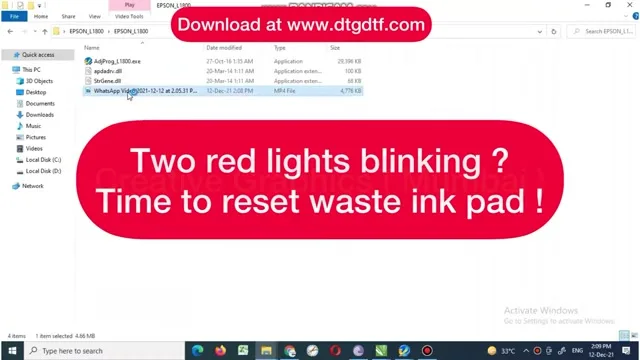
A customer sent a WhatsApp video of his L805 with both lights blinking red and no printing. That is not a fault; it is the waste ink pad counter saying the pad is full. On a DTF-converted printer the waste pipe goes to a bottle, so the pad is not full at all, but the counter does not know that. Three minutes with the adjustment program fixes it. There is no voice on this recording, so here are the steps as shown on screen.
What the video shows
- 0:00 — The customer's video: two red lights blinking
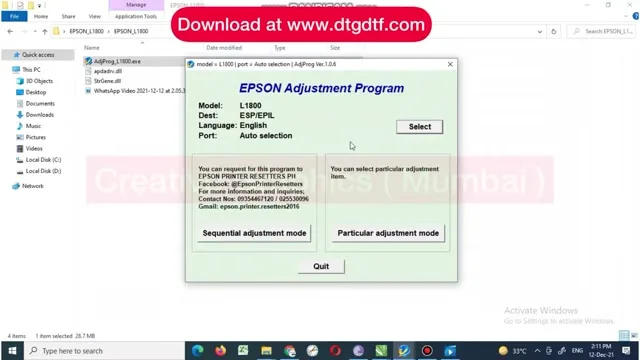
- 1:00 — Open the Epson Adjustment Program; model L1800, port auto
- 1:30 — Particular adjustment mode
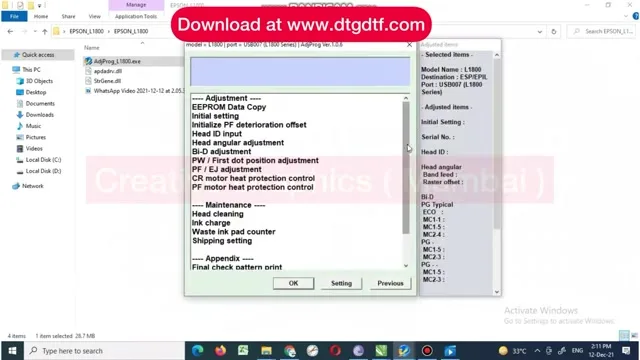
- 2:00 — Maintenance: Waste ink pad counter
- 2:25 — Check the current value
- 2:45 — Initialize the counters
- 3:10 — Finish; switch the printer off and on
What the lights mean
Both the ink light and the paper light blinking together, printer refusing to print: the waste ink counter has reached its limit. Epson expects the pad under the printer to be soaked by now. On a DTF conversion the waste pipe has been taken out of the pad and run to a bottle, so there is nothing to replace; the counter just has to be reset. On a stock printer, empty or change the pad first, then reset.
The adjustment program
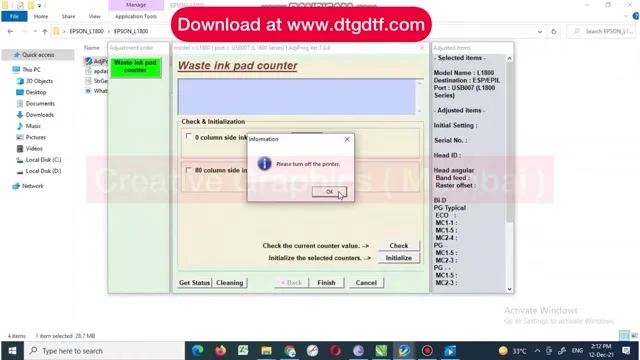
Run the Epson Adjustment Program for the L1800 / L805. Select the model and leave the port on auto selection. Choose Particular adjustment mode, then under Maintenance pick Waste ink pad counter.
Check, initialise, finish
Tick the main pad counter, press Check to read the current value, then Initialize to set it to zero. Confirm the prompt, press Finish, switch the printer off and on. The lights go steady and the printer prints. DTF fills the counter much faster than paper printing because every head clean pulls more ink, so expect to do this a few times a year.
Today
On the L18050 and L8050 we fit a resetter instead of running software: a USB-C cable and a long press clears the counter, unlimited times, no chips. It is on the store as the L18050 / L8050 resetter, and you can see it used in the roll-to-roll modifications video. For the L1800 and L805 the adjustment program still works; message us if you need the current tool.
Frequently asked questions
Why are both lights blinking red on my L1800 / L805?
The waste ink pad counter has reached its limit. The printer refuses to print until it is reset.
Do I need to change the pad on a DTF printer?
No. The waste pipe is run to a bottle on a conversion. Reset the counter and empty the bottle.
How do I reset it?
Epson Adjustment Program, particular adjustment mode, Maintenance, Waste ink pad counter, Check, Initialize, Finish, power cycle.
Why does it fill so fast with DTF?
Head cleans pull more ink than on paper printing, and DTF needs more head cleans.
What about the L18050?
We fit a USB-C resetter; no software, unlimited resets.
Lights still blinking?
Send a photo of the panel on WhatsApp and we will tell you whether it is the counter or something else.
WhatsApp +91 86555 56060